
Learn & Practice Mode
Learn new words by viewing full details, definitions, and pronunciations. Practice letter order by unscrambling words with immediate feedback after every attempt.
The Learning Edition provides a structured path from understanding a word to spelling it independently and accurately. Learners move through Learn, Practice, Test and Individual Speed Round, with each activity serving a different purpose in building knowledge, accuracy and confidence.
Need more detail? Read the Full User Guide
Begin in Learn to understand the word, move to Practice to reinforce spelling patterns, use Test to measure independent accuracy, and finish with Individual Speed Round to build faster recall under time pressure.
Configure your session settings and learning mode before starting.
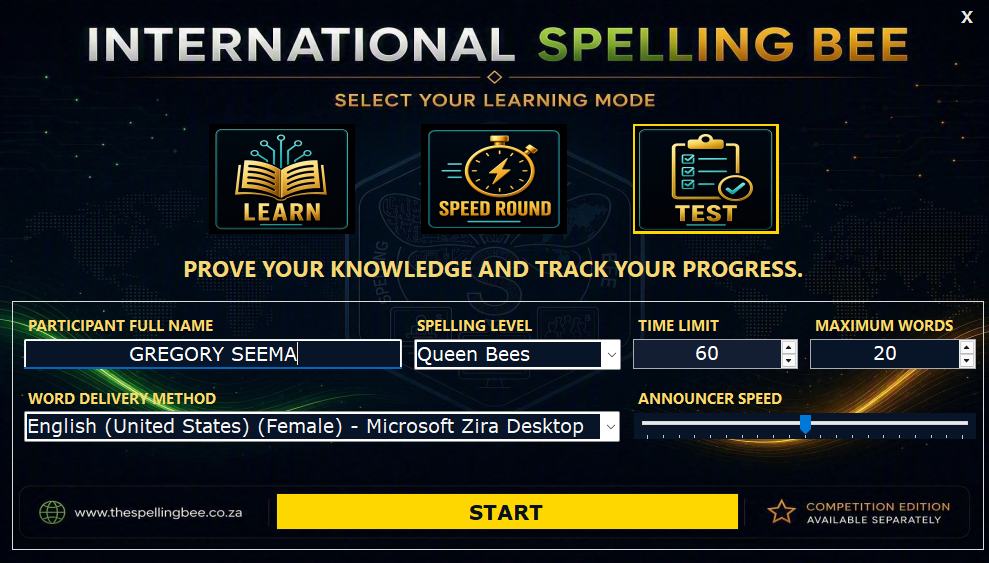
The opening screen brings together your activity choice and session settings. Learn supports guided understanding, Test records independent assessment, and Individual Speed Round develops timed recall under time pressure.
Learn new words by viewing full details, definitions, and pronunciations. Practice letter order by unscrambling words with immediate feedback after every attempt.
A fast-paced, timed challenge designed like a competition tie-breaker. Test your recall speed and spelling accuracy against a single overall round timer.
Select your maximum word limit to independently test your spelling knowledge without hints. Complete session results and percentages are generated at the end.
Learn Mode presents the information needed to understand and remember a word. Learners can listen to pronunciation, study the correct spelling, review the definition and example sentence, and examine the part of speech and origin.
After studying the information, the learner types the word from memory. This moves the activity beyond passive reading while keeping learning support available.

Practice helps learners work with words after studying them in Learn Mode. Guided activity reinforces letter order, recurring spelling patterns and the correct construction of difficult words.
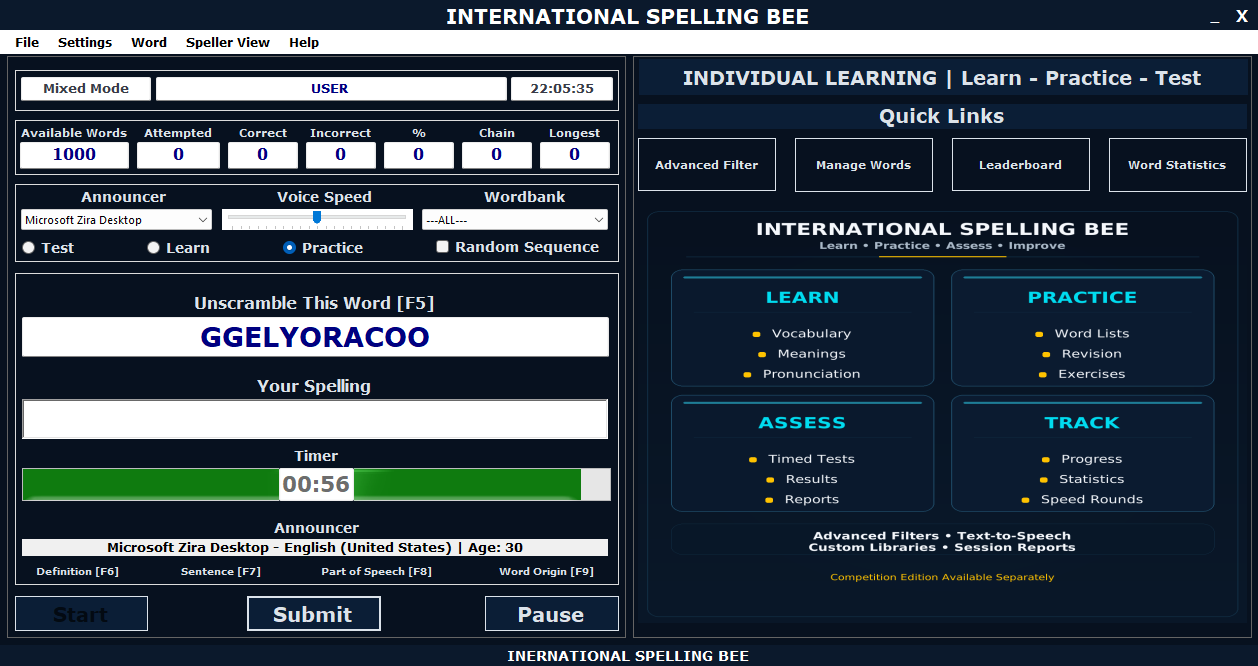
Feedback is immediate, allowing mistakes to be corrected while the learning process is still active.
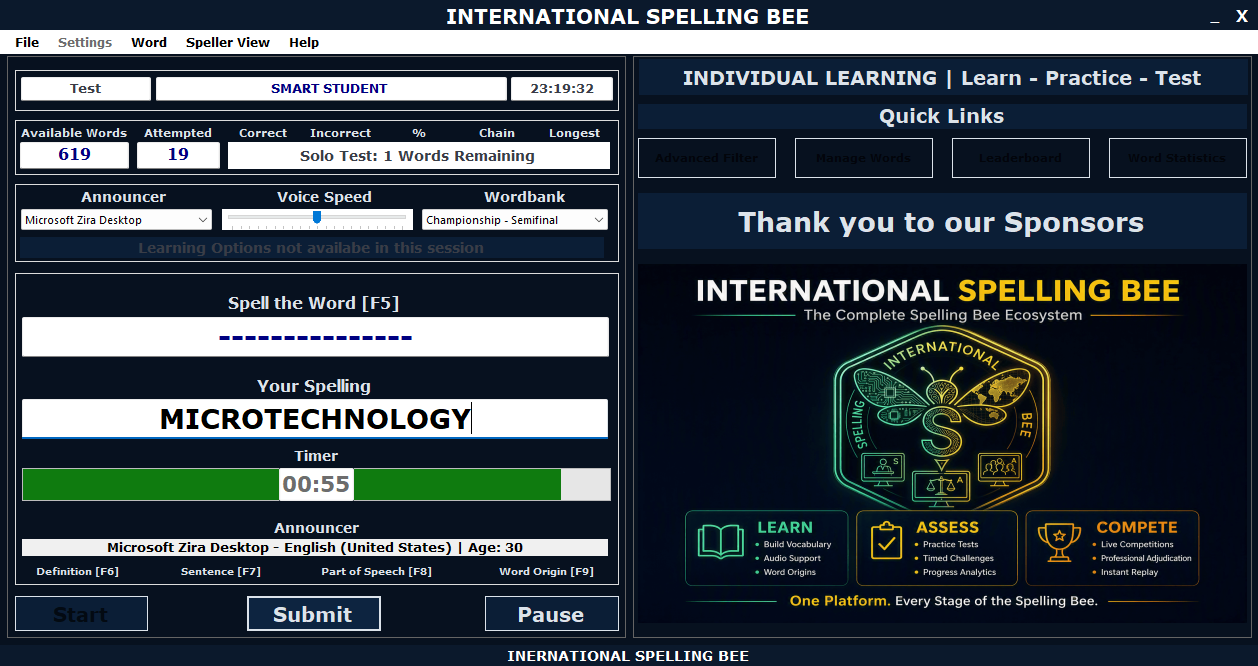
During Test, the word is delivered without displaying the correct spelling. The learner listens, types the spelling and submits the answer independently.
The software preserves the submitted spelling and records the result as CORRECT or INCORRECT. Results update Word Statistics and Session Reports, allowing the next activity to be based on evidence rather than guesswork.
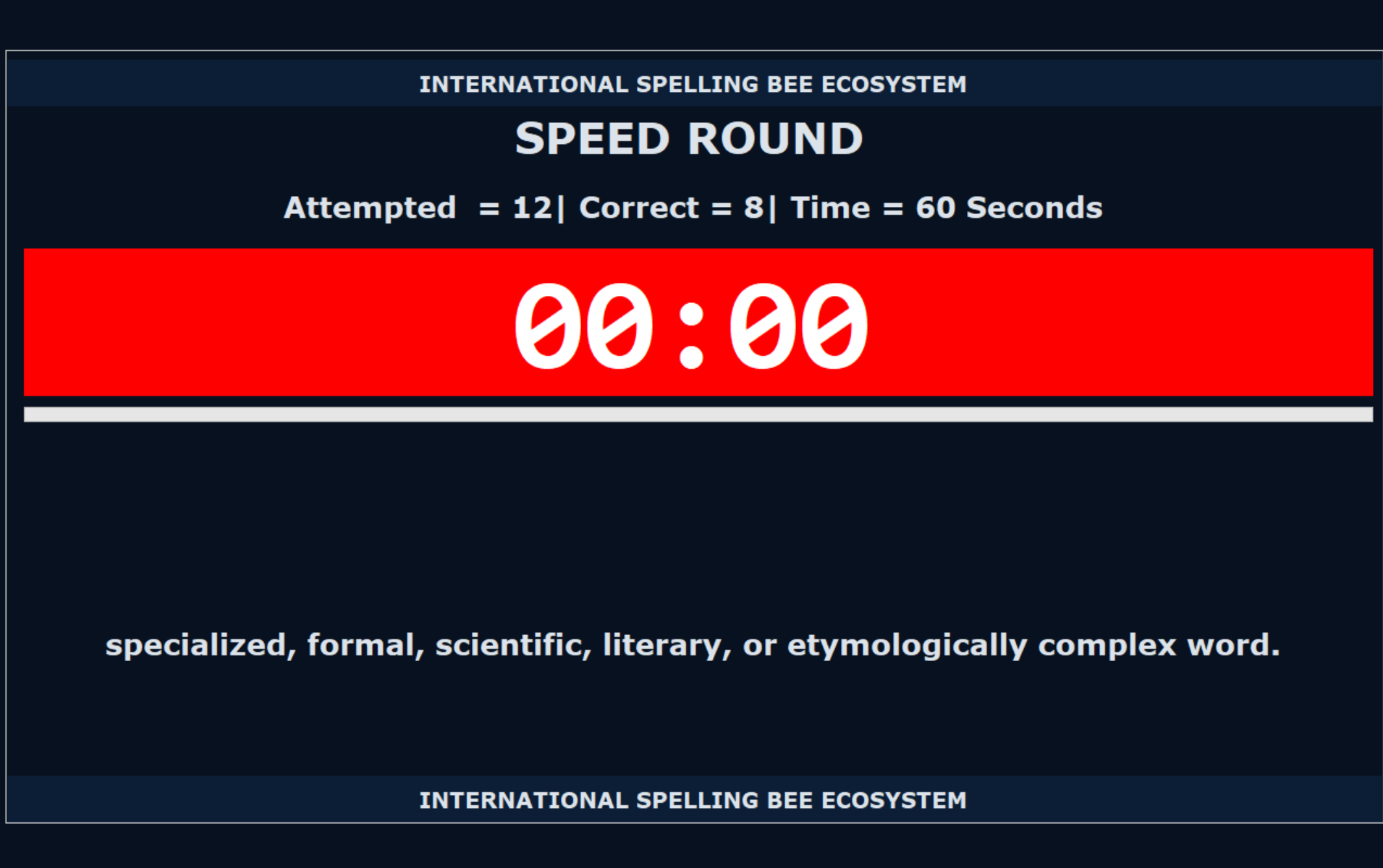
Individual Speed Round uses one overall timer. Words continue while time remains, helping learners make accurate spelling decisions under controlled time pressure.
Results can include attempted words, correct and incorrect answers, word chains and completion time, providing a fuller view than speed alone.
These tools extend the core learning activities by supporting visual study, consistent word delivery and useful records after every session.
Each flashcard combines spelling, pronunciation guidance, definition, example sentence, part of speech, origin, WordBank and notes into one focused view.
Select compatible Windows installed voices, adjust announcer speed, and use repeat controls for independent learning without requiring an oral reader.
Preserve activity details, words attempted, submitted spellings, results, percentages, and timing to turn every session into actionable evidence.
Learning management tools help learners and tutors organize content, isolate specific needs and interpret progress without repeating an entire WordBank.
Distinguish unattempted, learnt, practised, correct and incorrect words while showing part-of-speech and spelling-level distribution.
Filter results by mode and level to compare position, words attempted, correct totals, word chain length, percentage and speed.
Target words by length, starting/ending letters, contained patterns, WordBank, level, part of speech, status, and origin.
Add, edit, import, and organize reusable word content or select rule-based starter collections tailored to specific spelling patterns.
Download the fully functional 15-day Learning Edition trial from the Microsoft Store.